
Master Google Maps with 10 essential tips from creating custom maps and downloading offline to using Live View and tracking public transport. Travel like a pro with our comprehensive guide.
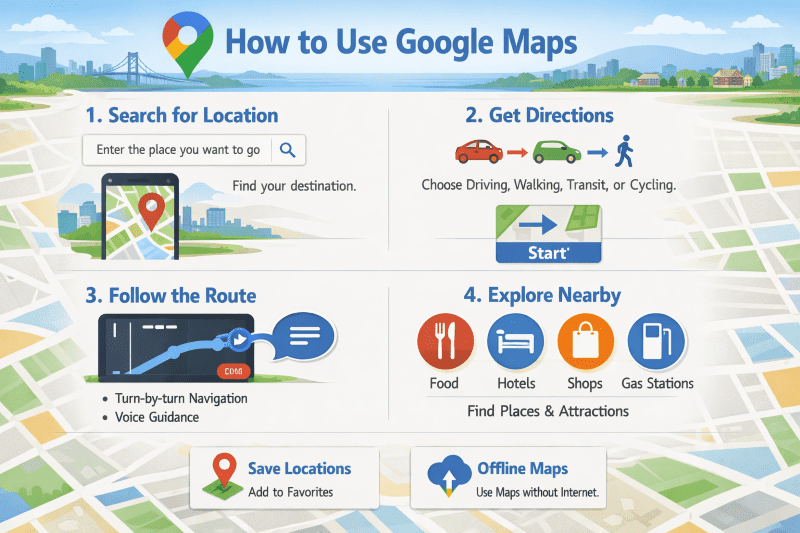
Master Google Maps Like a Pro Traveler: 10 Essential Tips and Hidden Features
Google Maps is one of the most powerful navigation apps available, yet few travelers unlock its full potential. From route planning to discovering hidden gems and using offline maps in areas without signal, Google Maps can become your best companion on any adventure.
In this detailed guide, you’ll learn how to use Google Maps like a true travel professional.
📍1. Create Your Own Custom Maps (Google My Maps)
A little-known but extremely useful feature is Google My Maps, which lets you create personalized maps for each trip.
What you can do with My Maps:
- Add places to visit (museums, restaurants, attractions).
- Group points into categories (with different colors and icons).
- Write notes for each location.
- Share them with friends or family.
👉 Go to https://www.google.com/mymaps, click “Create a New Map” and start building your route.
🌐 2. Use Google Maps Offline – Perfect for International Travel
If you know you’ll be heading to an area without internet or with expensive roaming, download maps in advance.
How to do it:
- Search for your desired area in the Google Maps app.
- Tap on the location name (at the top).
- Select “Download” and adjust your desired area.
📌 Downloaded maps remain available for 1 year and include turn-by-turn navigation, but without live traffic or public transit information.
🍽️ 3. Discover Restaurants, Cafés, and Attractions with Smart Filtering
Google Maps isn’t just a map—it’s a real local guide.
Useful tricks:
- Search for “restaurants” or “cafés” and filter by rating, open now, cuisine type, or price.
- Use the “Explore nearby” feature for personalized suggestions based on your location and preferences.
- Read reviews and see real photos before choosing a place.
🧭 4. Set Smart Routes with Multiple Stops
Planning a day full of visits? You can add multiple destinations to the same route.
How to do it:
- Enter your first location.
- Tap the three dots → “Add stop”.
- You can add up to 9 stops in a single route.
🔄 You can change the order of stops by dragging and dropping.
🚌 5. Track Public Transport and Real-Time Schedules
In many major cities (e.g., Paris, Rome, Berlin), Google Maps shows you bus, metro, and tram schedules in real time.
What you can see:
- The exact route on the map.
- Estimated arrival time.
- Transfers between transportation modes.
- Estimated cost (in some cities).
📱 Enable notifications to be alerted when you need to get off.
🅿️ 6. Find and Save Your Parking Location
The “Save parking location” feature saves you from stressful situations, especially in crowded cities.
How it works:
- After you park, open Google Maps.
- Tap the blue dot (your location).
- Select “Save parking location”.
📸 You can also add a photo of the area or a timer for limited parking.
🗺️ 7. Enable the “Live View” Feature for Quick Orientation
Instead of spinning around on the spot, try the Live View feature, which uses augmented reality (AR) to show you arrows and directions directly over the real street view on your screen.
How to use it:
- Tap the “Live View” button when you’re near a destination.
- Hold your phone up to see instructions directly on screen.
🔋 Uses battery quickly, but is very accurate in urban centers.
🌍 8. Save Favorite Places in Themed Lists
Google Maps lets you create personalized lists of locations that you can access anytime.
Examples of useful lists:
- “Places to visit in Barcelona”
- “Vegan restaurants in Milan”
- “Recommended accommodation in Greece”
📲 You can mark them with a “heart” or add to favorites and sync with your Google account.
✈️ 9. Check Crowds and Wait Times
For popular tourist attractions or restaurants, you can see:
- When it’s most crowded.
- Average wait time.
- Recommended hours for visiting.
📅 This data is based on user behavior and is extremely useful during tourist season.
🧳 10. Sync Google Maps with Google Travel
Visit https://www.google.com/travel to manage your reservations, tickets, and itineraries directly from your Google account.
Everything you receive via email (flight tickets, hotels, car rentals) is automatically organized, and Google Maps can show these locations directly on the map.
✅ Quick Tips for a Better Experience:
- Enable precise location for personalized suggestions.
- Use “Satellite” mode for realistic views.
- Check recent reviews – sometimes locations close or change.
- Avoid highways or toll roads, if you want a scenic route.
Conclusion
Google Maps is more than just a navigation app – it’s a complete travel guide that can help you explore new places safely, efficiently, and with more joy. By using these features and tricks, you’ll feel prepared like a professional traveler, whether you’re in a crowded city or on an exotic island.